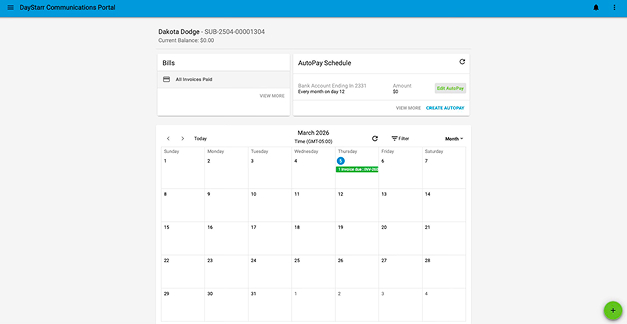
Main portal page

  • Clicking on the DayStarr Communications at the very top next to the Menu options will take customer back to this main page.
  • Customer can view calendar and see any scheduled tickets or installs, as well as invoices.
  • Customer can create and update autopay from here.
    • See setting up autopay confluence.
  • Unpaid invoices will appear under the “Bills” Section.

Menu options at top left (Three lines next to DayStarr Communications)

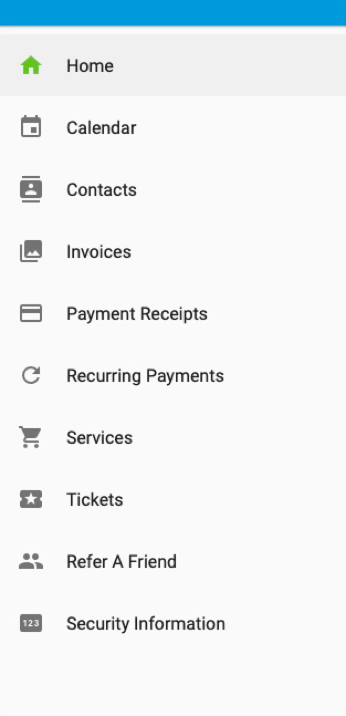
Some options under the menu are not currently available for customers to view at this time.

  • Calendar
    • Allows customer to view scheduled installs or appointments.
    • Invoice due dates appear here. This does not disappear once the invoice is paid.
  • Contacts
    • Customer can see and update contact information
  • Invoices
    • Shows all invoice history on account, customer can download PDFs and can see if they are paid or unpaid.
  • Payment Receipts
    • Customer can review any payments they have made, as well as download the receipts if desired.
  • Recurring Payments
    • Customer can see payment methods saved for auto payment, as well as payment history for that payment method.
  • Services
    • Allows customer to see active and inactive services that have been on their account.
  • Tickets
    • Are currently not available for customer use.
  • Refer a Friend
    • Has a direct link and code for customers to give out for referral credits.
  • Security Information
    • Security code needed to give out specific information or make specific changes to account. Example: IT service calls for Static IP information. They need to confirm the security code for us to provide the information.

Green action button, bottom right corner

  • Shopping cart option allows them to add a service to their account. Does not open a disconnect ticket for a current service.
  • Card option allows customers to make one time payment, save payment methods to the account and set up recurring payments. (Cannot update autopay here)
  • Phone and Envelope options allow the customer to add contact information to the account.

User settings, top right corner

  • User Settings
    • Customer can update their portal password here.